'%3e%3cpath%20class='a'%20d='M662.846,1043.8l-14.75-10.817-14.912,10.936a15.981,15.981,0,1,1,29.662-.119Z'%20transform='translate(-632.011%20-1022.02)'/%3e%3cpath%20class='b'%20d='M704.176,1354.583l13.291,9.865a16.179,16.179,0,0,1-26.706.112Z'%20transform='translate(-688.094%20-1339.553)'/%3e%3c/g%3e%3cg%20transform='translate(40.433)'%3e%3cpath%20class='a'%20d='M21.61-179.726a26.985,26.985,0,0,0-8.211-1.5c-7.4,0-11.8,4.757-11.8,12.382,0,4.106,2.509,6.256,5.539,6.256a8,8,0,0,0,5.507-2.281l.424,2.053h5.213Zm-7.234,3.519-1.6,7.722a4.593,4.593,0,0,1-2.411.782c-1.173,0-2.02-.749-2.02-2.444,0-3.389,1.6-6.191,4.79-6.191A8.418,8.418,0,0,1,14.377-176.207ZM38-168.583a14.118,14.118,0,0,1-5.7,1.238c-2.216,0-3.519-.88-3.519-2.444a4.5,4.5,0,0,1,.1-.815,15,15,0,0,0,3.975.554c3.812,0,7.266-1.629,7.266-6.028,0-2.7-2.151-5.148-6.745-5.148-7.331,0-11.469,5.735-11.469,11.8,0,5.507,3.877,7.038,8.635,7.038a25.253,25.253,0,0,0,6.908-1.043ZM29.267-173.7a3.587,3.587,0,0,1,3.324-3.226c1.173,0,1.6.587,1.6,1.238,0,1.271-.945,2.085-3.291,2.085C30.473-173.6,29.886-173.633,29.267-173.7Zm31.248-6.028a27.108,27.108,0,0,0-8.113-1.5c-7.592,0-11.991,4.953-11.991,12.414,0,4.334,2.607,6.223,5.572,6.223a8.258,8.258,0,0,0,5.6-2.281l-.1.815c-.326,2.737-2.542,3.486-4.985,3.486a22.6,22.6,0,0,1-6-1.01l-.978,4.985a31.974,31.974,0,0,0,6.843.847c5.441,0,9.775-1.792,10.948-7.69Zm-7.234,3.552-1.531,7.69a5.239,5.239,0,0,1-2.574.782c-1.173,0-2.02-.782-2.02-2.379,0-3.454,1.4-6.223,4.725-6.223A7.013,7.013,0,0,1,53.281-176.175Zm10.362-4.659-2.476,12.349c-.717,3.617.652,5.865,4.464,5.865a25.851,25.851,0,0,0,3.747-.293l.782-4.334c-2.281.033-2.542-.912-2.216-2.574l2.281-11.013Zm7.82,13.1-1.075,4.822a39.953,39.953,0,0,0,6.289.489c5.7,0,9.775-2.313,9.775-7.331,0-5.474-7.4-3.877-7.4-5.637,0-.652.619-1.14,2.607-1.14a23.311,23.311,0,0,1,4.79.554l1.108-4.659a29.486,29.486,0,0,0-5.735-.586c-4.985,0-9.58,2.118-9.58,7.136,0,5.311,7.4,3.78,7.4,5.409,0,1.108-1.173,1.5-2.867,1.5A29.214,29.214,0,0,1,71.463-167.735Z'%20transform='translate(-1.604%20187.383)'/%3e%3cpath%20class='b'%20d='M614.561-237.057h6.712l.945-4.79h-6.712Z'%20transform='translate(-552.294%20241.847)'/%3e%3c/g%3e%3c/svg%3e)
Plenty of creators start with one channel and end up with three. The main channel carries the long videos. Then comes a Shorts channel, a music channel for the tracks, or a vlog channel for the everyday stuff that doesn't fit the main feed. Each one makes sense on its own. Keeping track of all of them is where it gets messy.
Why YouTube Studio makes this awkward
YouTube Studio works one channel at a time. Its analytics show the channel you're in, and to see another you switch channels from your profile picture. If a channel belongs to a different Google account, you switch accounts as well.
That's fine when you check one channel now and then. It gets old fast when you want a simple answer, like how all your channels did last month. You open each channel, set the same date range, write down the numbers and add them up yourself. Most creators end up with a spreadsheet they update by hand, and it's out of date a day later.
What to track
You don't need every chart in Studio. Across a group of channels, four numbers do most of the work.
- Views. The quickest read on whether a channel is growing, flat or slipping.
- Watch time. Views tell you people clicked. Watch time tells you they stayed, and it's the better measure for long videos.
- Subscribers. Look at the net gain over the period as well as the lifetime total. The gain shows which channel is still pulling people in.
- Estimated earnings. What each channel made over the period. Studio labels these figures as estimates, and they only appear for channels in the YouTube Partner Program.
Look at each number per channel and in total, over the same date range. The total tells you how your business is doing. The split tells you where to spend your time.
What the comparison shows you
Once the channels sit side by side, patterns appear that you'd miss checking them one by one.
A Shorts channel can pull more views than your main channel and still earn less, because Shorts often earn less per view than long videos. That doesn't make the Shorts channel a waste. If it sends people to the main channel, you'll see the main channel's subscribers move when the Shorts channel has a good week.
A music or vlog channel might have modest views but steady watch time and steady earnings. That's a channel worth keeping up, even if it never looks exciting in Studio.
And sometimes a channel just stops. Uploads slow, views drift down, and nobody notices for a month because nobody was looking at it. Seeing every channel on one screen makes that hard to miss.
Put every channel in one dashboard
This is the job Heart ID was built for. It's a read-only YouTube dashboard from Freedom!, a YouTube network, and it puts the views, watch time, subscribers and estimated earnings of all your channels in one place, so you stop switching accounts in YouTube Studio.
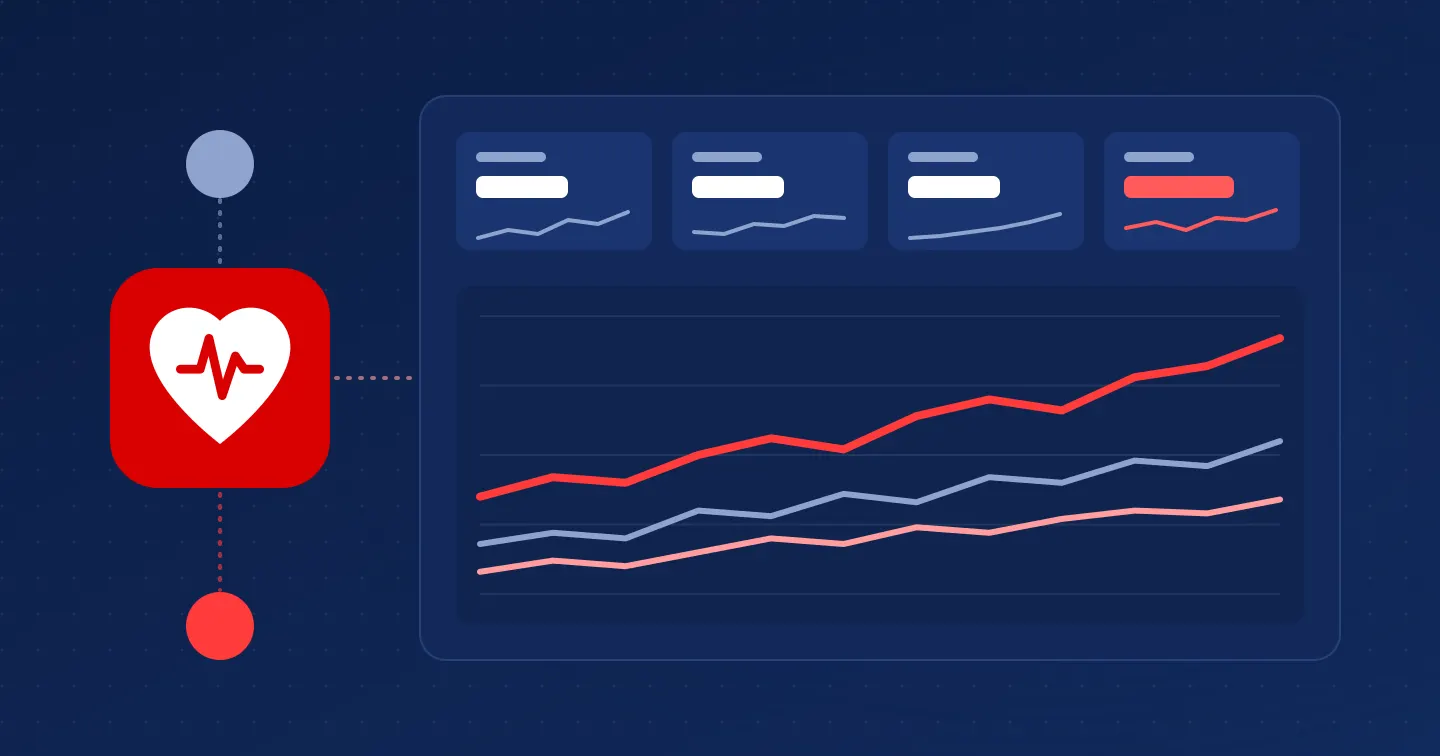
You sign in with Google and connect your channels, from any of your Google accounts. The overview shows your four numbers for the channels you choose, with a daily chart that draws one line per channel. To compare, pick the channels you want on one chart and choose views or watch time. Point at any day to see each channel's figure for it. Each channel also gets a card with its subscribers, videos, total views and a 28-day views trend, and you can drag the cards into the order you like.
When you create an account, Heart ID emails you a weekly summary of your channels, and an alert when one stops updating. You can turn either off.
Heart ID asks Google for read-only access. It can't upload, edit or delete your videos, and you can remove a channel at any time.
The free plan covers up to 5 channels with no card required. The paid Heartbeat Premium plans raise the channel limit and add CSV exports and team seats.
The earnings that don't show up anywhere
Studio and Heart ID show what your own uploads earn. If other channels reupload your videos, the money those copies make goes to the uploader, and it never appears in your numbers. We wrote about how to spot those channels in how to tell if the channel reuploading your video is a spam channel.
Aegis claims those reuploads through Content ID, so the earnings come back to you. Our dashboard breaks them down by asset and by claim, and you can choose to be paid on the 18th of the following month or cash out any time based on estimated earnings. Our post on licensing your content covers another way to earn when other people use your videos. If your videos get copied often, apply to Aegis with the Apply Now button on our homepage.
Start with one screen
Pick a date range, line up every channel you run, and look at the four numbers together. Sign in to Heart ID with Google and your dashboard fills in.